Get Your App Onto the Dataverse IP Firewall Allowlist With a Static IP

July 20, 2026
5 min read
Pattern

To get your integration past the Dataverse IP firewall, route its API calls through QuotaGuard and add the two static IPs to your environment's allowed IP ranges.

Microsoft's Dataverse IP firewall does exactly what a Power Platform admin wants: it blocks any request to Dataverse from an IP that isn't on the allowlist. That's a problem when your integration runs on a cloud host that hands out a different egress IP every deploy. The fix is two fixed IPs the admin can safely allow.

The Dataverse IP Firewall Checks Every Request, Including API Traffic

The IP firewall is a Managed Environments feature that evaluates the source IP of each request to Dataverse in real time. Microsoft's documentation is explicit that this isn't just about interactive user sign-ins: it works in noninteractive scenarios, and a dedicated setting governs third-party and first-party access to the Dataverse APIs. If the calling IP is outside the allowed ranges, Dataverse rejects the request with an access-blocked error before your integration does any work.

That's the right control for an admin closing off data exfiltration and token-replay risk. It also means a service integration calling the Dataverse Web API has to present a known, stable source IP. Rotating cloud egress isn't something an admin can safely allow, because allowing a cloud provider's whole published range would let in every other tenant on that infrastructure.

A Static Egress IP Makes Your Integration Allowlistable

If your integration runs on AWS Lambda, its IP can change on every invocation. Heroku dynos take new IPs on restart. Render, Railway, and Fly.io draw from shared pools. None of those give the admin an address they can add to the firewall and trust.

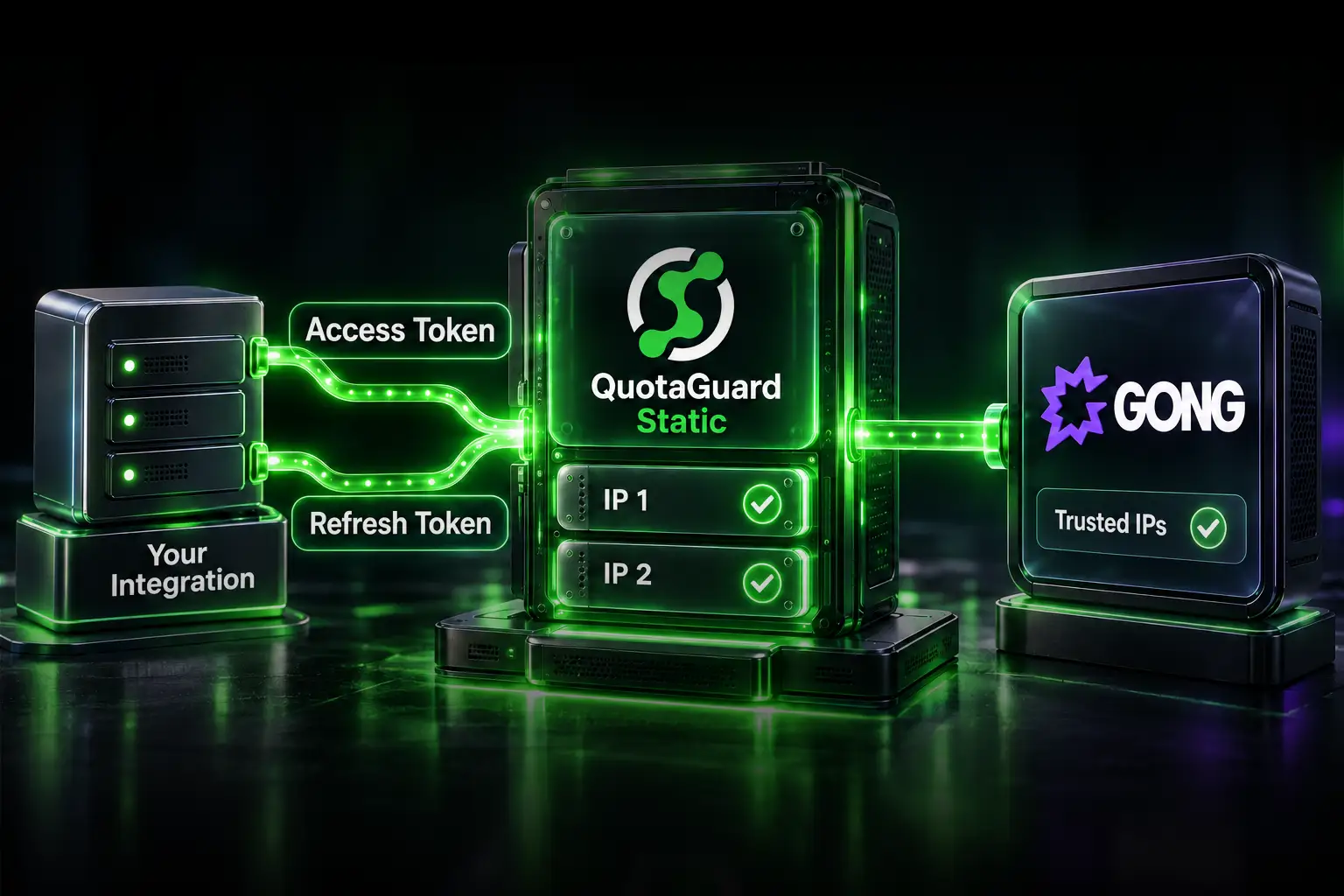
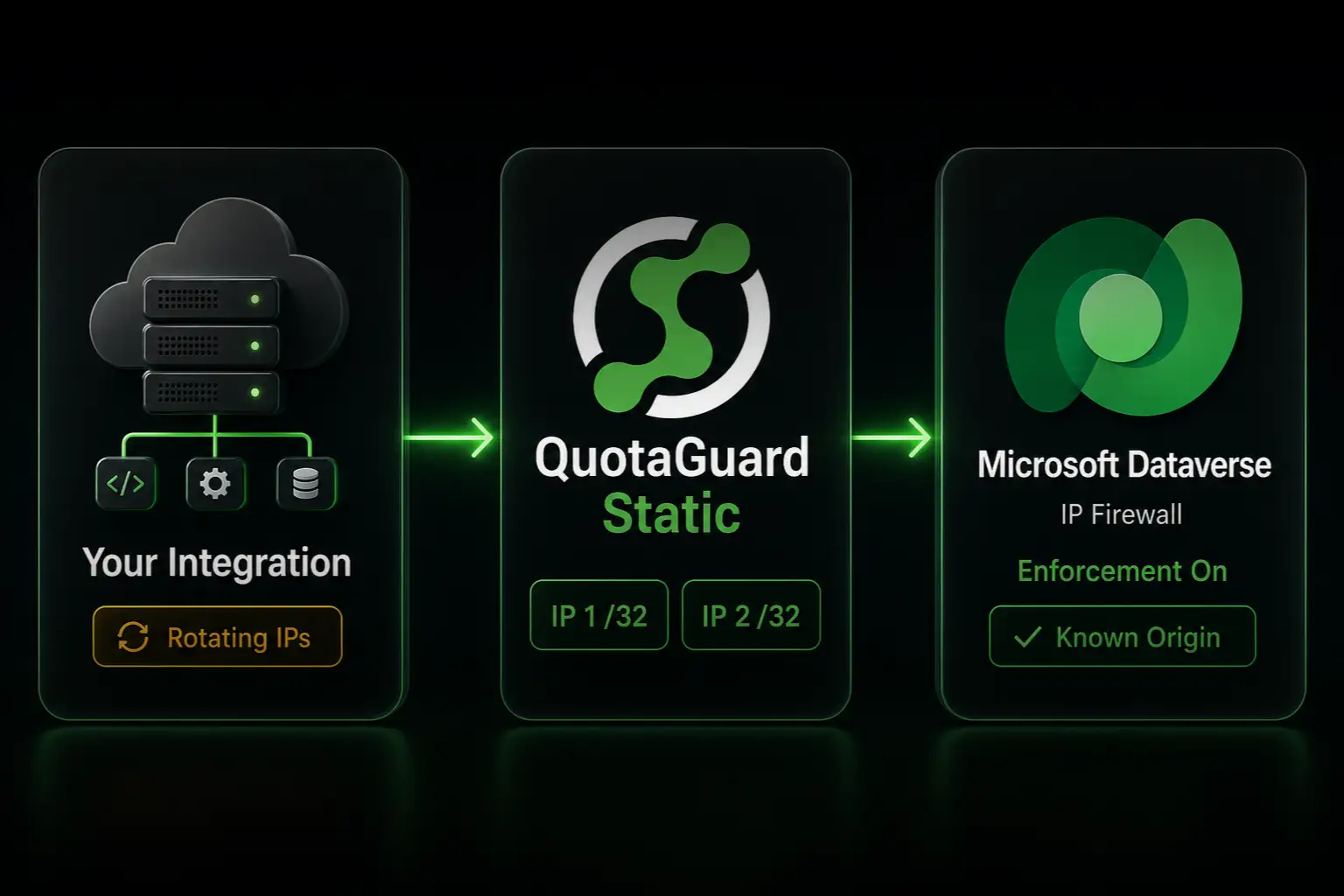
A static IP proxy solves that at the network layer, with no change to your Power Platform environment or your app's hosting. Your integration's outbound Dataverse calls route through the proxy and arrive from a fixed address the admin can allowlist once. Your traffic becomes a known origin instead of noise the firewall has to reject.

QuotaGuard assigns every subscription two load-balanced static IPs, and traffic can leave from either, so both go in the allowlist. The firewall accepts CIDR notation, so each address is added as a /32.

Your Integration Gets a Static IP in 2 Minutes

Sign up, copy your connection URL from the QuotaGuard dashboard, and set it in your app's environment as QUOTAGUARDSTATIC_URL:

http://username:password@us-east-static-01.quotaguard.com:9293

The region in the hostname is selected when you sign up. Pick the one closest to your Dataverse environment's region. Changing regions later means contacting support, so it isn't something you edit in the connection string.

Then route your HTTP client at the proxy. The Dataverse Web API is plain HTTPS, so it goes through the HTTP proxy with no special handling. Node.js with axios:

const axios = require('axios');
const { HttpsProxyAgent } = require('https-proxy-agent');
 
const agent = new HttpsProxyAgent(process.env.QUOTAGUARDSTATIC_URL);
 
const res = await axios.get(
  `${process.env.DATAVERSE_URL}/api/data/v9.2/accounts`,
  {
    httpsAgent: agent,
    headers: {
      Authorization: `Bearer ${accessToken}`,
      'OData-MaxVersion': '4.0',
      'OData-Version': '4.0',
      Accept: 'application/json',
    },
  }
);

Python with requests:

import os
import requests
 
proxies = {
    "http": os.environ["QUOTAGUARDSTATIC_URL"],
    "https": os.environ["QUOTAGUARDSTATIC_URL"],
}
 
res = requests.get(
    f"{os.environ['DATAVERSE_URL']}/api/data/v9.2/accounts",
    headers={
        "Authorization": f"Bearer {access_token}",
        "OData-MaxVersion": "4.0",
        "OData-Version": "4.0",
        "Accept": "application/json",
    },
    proxies=proxies,
)

Authentication is unchanged. Your app still acquires its token the same way, whether that's a service principal or an application user. Route the token request through the same proxy as the API calls so both leave from your static IPs, since the firewall evaluates the source IP after authentication completes.

Add Both IPs to the Environment's Allowed Ranges

Your two static IPs are in the QuotaGuard dashboard. A Power Platform admin adds them in the Power Platform admin center under the environment's security settings, or through the Dataverse OData API, as CIDR entries. Register both. Adding only one causes intermittent rejections that look random in your logs, because the load balancer routes through whichever IP is healthy.

One workflow note worth passing to the admin: Microsoft recommends enabling the firewall in audit-only mode first, which logs the IPs making calls without blocking anything. That's the safe way to confirm your two QuotaGuard IPs are showing up as the source before switching to enforcement.

Two Constraints Straight From Microsoft's Docs

First, the IP firewall is a Managed Environments feature only. If your target environment isn't a Managed Environment, the setting isn't available, and that's a Power Platform licensing decision on the admin's side, not something a proxy changes.

Second, this covers your integration reaching in to Dataverse. It's a separate control from the "allow access for all application users" and Microsoft trusted services settings. If an admin turns those off alongside the firewall, some Dataverse-dependent services like Power Automate flows can stop working, per Microsoft's documentation. Coordinate the allowlist change with whoever owns the environment so the firewall tightening doesn't take out a flow you depend on.

QuotaGuard Shield Keeps Regulated Payloads Encrypted End to End

QuotaGuard Static and QuotaGuard Shield both carry outbound HTTPS through a blind CONNECT tunnel. Neither product decrypts your payload. The difference is the hop between your app and the proxy: on Static that hop uses the plain HTTP proxy protocol, while Shield encrypts it with TLS. Use Shield for regulated data such as HIPAA or PCI workloads.

For a standard Dataverse integration, Static is the right fit. If the records moving through your integration are regulated, and your security review requires that the customer-to-proxy hop is also encrypted, switch to Shield: same setup, the QUOTAGUARDSHIELD_URL variable, and port 9294.

QuotaGuard Static Pricing Starts at $19/Month

Bandwidth is bundled. No per-GB overage fees. A scheduled Dataverse sync or a moderate-traffic integration fits the Starter tier; move up to QuotaGuard Static Production at $49/month for heavier daily API volume. Dedicated IPs are included on Enterprise at $219/month. On lower tiers, your two assigned IPs are still static, but shared with other customers.

QuotaGuard Shield Pricing Starts at $29/Month

Shield costs slightly more than Static at each tier because the TLS-encrypted hop adds routing overhead. For an integration handling regulated records into Dataverse, that difference buys the encryption model a vendor security review will ask about.

All plans include a 3-day trial. Enterprise plans include a 7-day trial. Credit card required.

See the full pricing table at quotaguard.com/products/pricing.

Allowlist Two IPs and Let the Firewall Do Its Job

The Dataverse IP firewall is meant to reject unknown origins, and a rotating cloud IP is exactly the kind of origin it rejects. Two static IPs turn your integration into a known one: the admin adds them once, keeps the firewall in enforcement mode, and your API calls keep landing no matter how your infrastructure rotates underneath. Start a free trial and your integration reaches Dataverse from a fixed IP in 2 minutes.

QuotaGuard Static IP Blog

Practical notes on routing cloud and AI traffic through Static IPs.

Reliability Engineered for the Modern Cloud

For over a decade, QuotaGuard has provided reliable, high-performance static IP and proxy solutions for cloud environments like Heroku, Kubernetes, and AWS.

Get the fixed identity and security your application needs today.