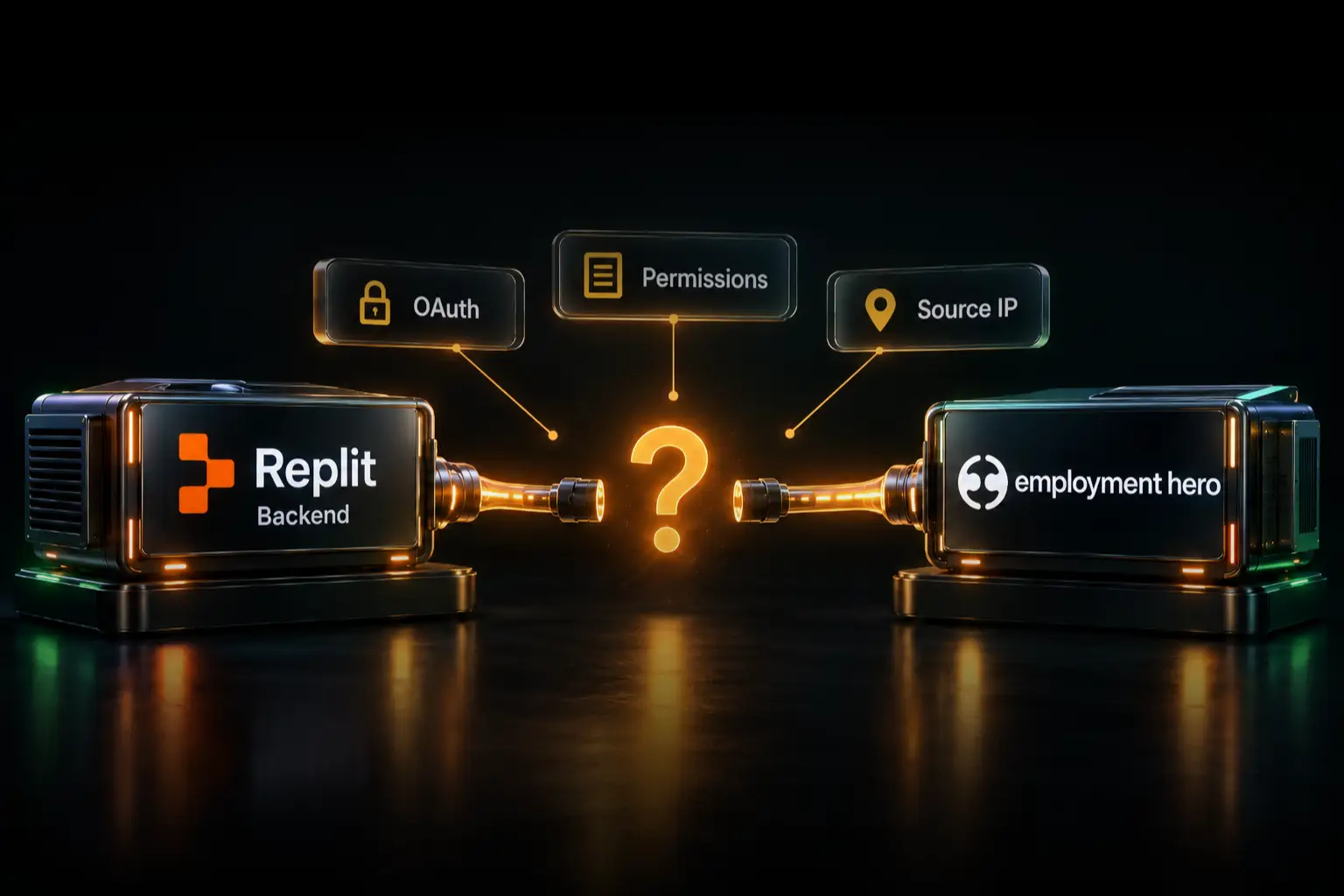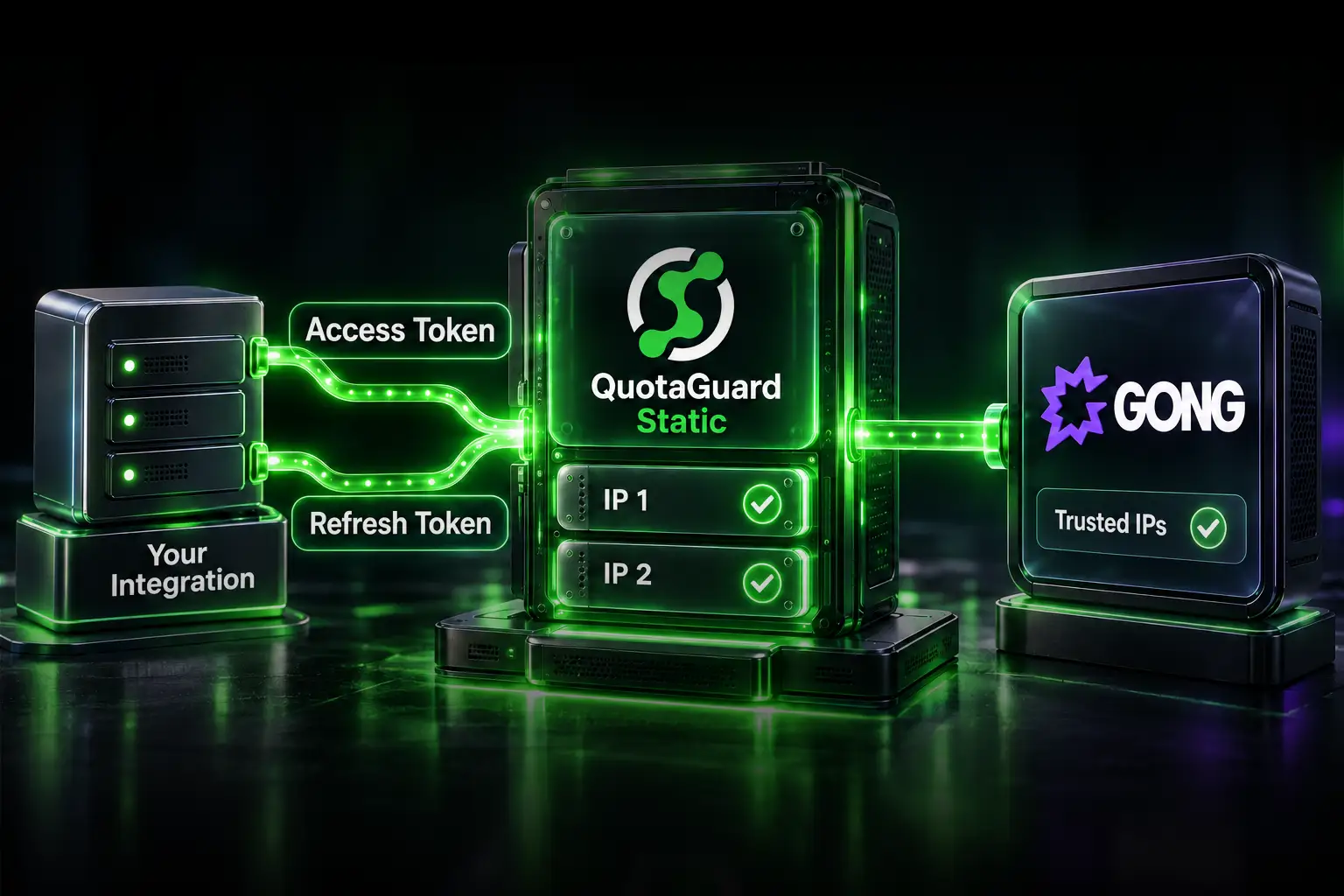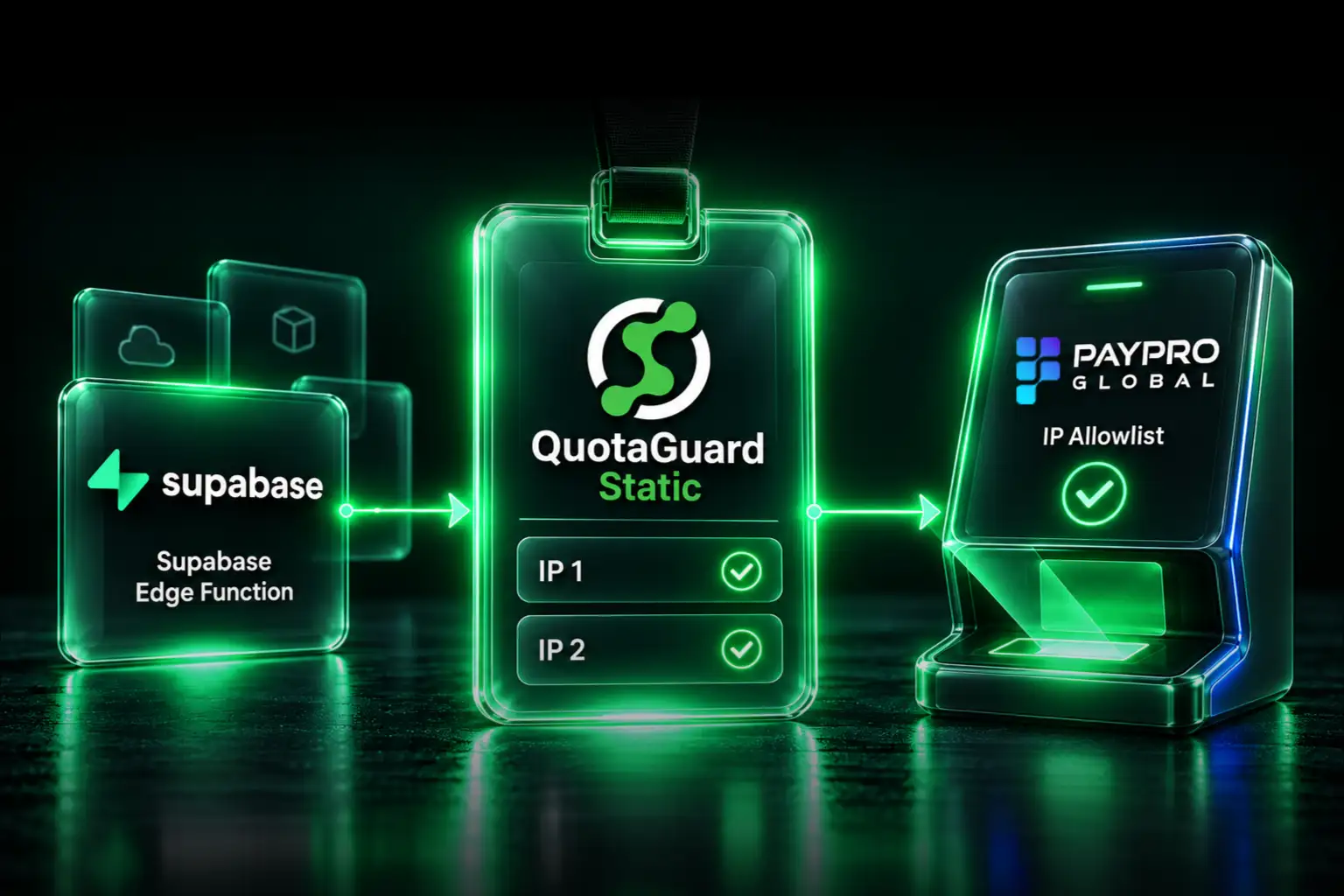

Connect a Replit backend to SQL Server on an Azure virtual machine through two stable outbound IP addresses by running QGTunnel with the application. Add both QuotaGuard addresses to the VM's Azure network security group, keep the proxy and database credentials in Replit Secrets, and the SQL Server sees the same allowlisted source identity after Replit deployments.
Replit advertises native static outbound IPs on its custom-priced Enterprise plan, but its public documentation does not define deployment coverage, IP count, exclusivity, or routing behavior. This guide uses QuotaGuard as the self-service, managed route for teams that need a portable pair, engineer support, and proxy availability without moving the organization to a custom Enterprise contract.
This Guide Is for SQL Server on an Azure VM
The firewall steps below use an Azure VM network security group. They are not instructions for Azure SQL Database or Azure SQL Managed Instance, which have different networking controls.
SQL Server on port 1433 uses raw TCP and the Tabular Data Stream protocol. A standard HTTP client's proxy option does not route it. QGTunnel provides the supported QuotaGuard path for the database connection while letting the application continue using its normal SQL Server driver.
Step 1. Choose Static or Shield and Copy Both IPs
QuotaGuard Static is the normal starting point. SQL Server's own encrypted connection remains encrypted through the tunnel, and QuotaGuard does not decrypt that database payload. Static's Replit-to-proxy hop uses the plain proxy protocol.
QuotaGuard Shield adds TLS to the Replit-to-proxy hop. Choose Shield when your security policy or approved compliance architecture requires it. Shield is not automatically required merely because the database contains business or regulated data.
Copy the connection URL and both assigned static IP addresses from the QuotaGuard dashboard. The examples below use the generic Secret name QUOTAGUARD_URL so the application configuration is clear whichever approved product you select.
Step 2. Allow Both Addresses in the Azure VM NSG
In the Azure portal, open the VM's networking settings and add an inbound security rule:
- Source: IP Addresses
- Source IP addresses: both QuotaGuard static IPs
- Destination port: the SQL Server TCP port, commonly 1433
- Protocol: TCP
- Action: Allow
Also confirm that SQL Server is listening on the intended TCP port and that the VM's operating-system firewall allows it. Add both QuotaGuard addresses even if a short test shows only one; the service uses a load-balanced pair.
Step 3. Add Replit Secrets
Add these values through Replit's Secrets tool, using the exact QuotaGuard connection URL from the dashboard:
QUOTAGUARD_URL=http://username:password@<your-static-host>:9293
DB_SERVER=your-azure-vm-hostname
DB_PORT=1433
DB_NAME=your-database-name
DB_USER=your-sql-login
DB_PASSWORD=your-sql-password
For Shield, use the Shield URL and port shown in the dashboard. Secrets keep credentials out of source control, but the application process can read them at runtime. Treat code running inside the workspace as trusted to the same degree as any other process that receives production credentials.
Step 4. Configure and Start QGTunnel
Download QGTunnel during the build or startup process, configure a tunnel from the local SQL Server port to DB_SERVER:DB_PORT, and start the application under QGTunnel. The exact command depends on your QuotaGuard dashboard configuration and Replit run command.
You can ask Replit Agent to make the mechanical changes, but review the generated startup command and configuration before deploying. A useful prompt is:
Configure QGTunnel so this backend's SQL Server connection to DB_SERVER on DB_PORT routes through the QuotaGuard URL stored in QUOTAGUARD_URL. Download the supported QGTunnel binary during startup, keep every credential in Replit Secrets, preserve TLS in the SQL Server driver, and show me the generated tunnel configuration and run command before applying them.
Step 5. Test the Database Connection
Start the deployed backend and run a minimal query such as SELECT 1. Confirm the connection succeeds with the Azure NSG restricted to the two QuotaGuard addresses. Do not open port 1433 to 0.0.0.0/0 as a troubleshooting shortcut.
Troubleshooting
Connection timeout. Confirm that the NSG contains both exact QuotaGuard addresses, SQL Server TCP/IP is enabled, the service is listening on the expected port, and the operating-system firewall permits it.
Login failure. This public-internet Azure VM pattern requires a noninteractive authentication method supported by the chosen driver and SQL Server configuration. SQL Authentication is the simplest path shown here. Windows or Microsoft Entra authentication can work in separately configured domain or identity architectures, so do not change authentication modes unless authentication is actually the failure.
The VM sees a Replit address. The database driver is bypassing QGTunnel or the application started outside the tunnel wrapper. A Secret alone does not alter the connection path.
Intermittent failure. Confirm that both QuotaGuard addresses are present in the NSG and every relevant firewall layer.
Why Use QuotaGuard Instead of Operating the Egress Layer?
A static address is only one part of the job. QuotaGuard operates the proxy infrastructure, health checks, load-balanced pair, failover, monitoring, and engineer support. The same pair can also remain with the application if it later moves away from Replit. That avoids turning a small firewall requirement into another VM, NAT, or proxy service your team has to patch and answer for during an incident.
Get Started
QuotaGuard Static starts at $19 per month and Shield starts at $29 per month. Choose the nearest of 12 AWS regions at signup, or contact support for help validating the Replit-to-Azure VM route.
QuotaGuard Static IP Blog
Practical notes on routing cloud and AI traffic through Static IPs.