

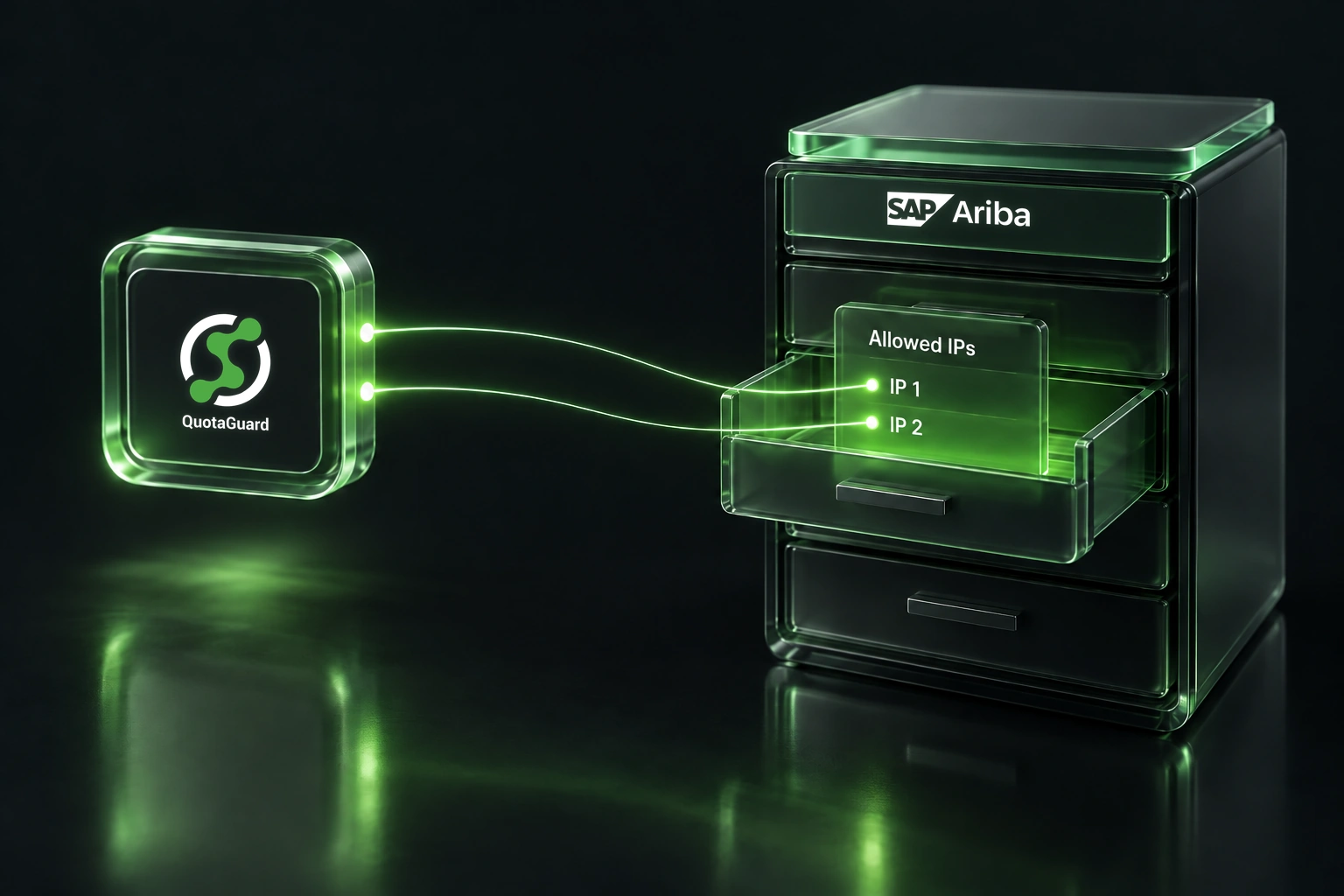
"Access is Denied. Please contact your Organization admin." can mean the deployed client's egress isn't covered by that application's optional Allowed IPs list.
SAP documents that exact response for an API call whose source IP falls outside every CIDR range configured for the application. That makes Allowed IPs the first setting to inspect after a deployment or network change.
It isn't a universal SAP requirement for static IPs, and it isn't the explanation for every 403. The list is an optional, customer-controlled restriction on each application. SAP's KBA 3183885 preview names the 403 symptom, but its resolution is behind a login. The public SAP Ariba Developer Portal guide provides the behavior and configuration steps described below.
The Exact SAP Message Makes Allowed IPs the First Check
SAP's guide says an application with an empty Allowed IPs list accepts requests from any source IP. Once an Organization Admin adds one or more IPv4 CIDR ranges, only requests originating within those ranges satisfy the source-IP check for that application.
The restriction doesn't replace authentication. A request from an admitted source still needs the application's valid API key and must complete the required OAuth process. Passing one layer doesn't prove the other layer is correct.
Start by confirming which SAP Ariba Developer Portal application owns the failing API call. Allowed IPs is configured per application. Checking a different application with a similar name can produce a convincing but irrelevant result.
Six Checks Isolate the Failing Layer
- Capture the raw response. Record the HTTP status and SAP response body before a client, SDK, gateway, or retry wrapper replaces it with a generic exception. The exact Allowed IPs message is more useful than the status code alone.
- Open the correct application. Ask an Organization Admin to inspect the application that issued the API key and OAuth client used by the deployed integration.
- Inspect Allowed CIDR Ranges (IPv4). An empty list means this application isn't restricting source IPs. A populated list means the deployed client's public egress must fall within at least one saved range.
- Identify the deployed client's real egress. Check from the process and HTTP client that actually calls Ariba. Don't use the website's inbound address, a private container address, a developer's laptop IP, or the address returned by a separate unproxied diagnostic.
- Check authentication and API enablement separately. Confirm the application key header, access token state, and whether the requested API is enabled for that OAuth client.
- Trace transport failures before changing Ariba. DNS errors, proxy authentication failures, connection timeouts, and TLS negotiation errors occur before a normal Ariba API response. Fix that path before editing the application's Allowed IPs.
If a proxy test shows the expected address but the Ariba call doesn't, the two requests probably aren't using the same client path. The deeper wrong-IP troubleshooting guide explains how separate processes, SDK transports, and direct fallbacks create this mismatch.
The Allowed CIDR Ranges Dialog Applies the Restriction Per Application
SAP's current workflow requires the Organization Admin role:
- Sign in to the SAP Ariba Developer Portal as an Organization Admin.
- Choose Manage, then Applications.
- Select the application used by the failing integration.
- Choose Actions, then Allowed IPs.
- In Allowed CIDR Ranges (IPv4), enter a valid IPv4 CIDR range.
- Press Enter or Space so the range becomes an entry in the CIDR Range(s) box.
- Choose Save.
SAP allows at most 30 CIDR ranges on one application's list. That's 30 ranges, not 30 individual addresses. A single host can be represented as a narrow /32 range.
Don't clear the list to restore service, and don't add a cloud provider's broad address ranges as a shortcut. Capture the current entries, add only the required source ranges, verify the deployed client, and remove obsolete entries later under your normal change process.
The Deployed API Client's Public Egress Is the Address to Register
The address that matters is the public IPv4 source SAP sees on the resource request. It can differ from the application's public website address because inbound and outbound networking are separate. It can also differ from the address observed on a developer workstation.
Run an egress check inside the deployed workload through the same HTTP client and proxy configuration used for Ariba. QuotaGuard's IP check endpoint returns JSON in the form {"ip":"..."}. For a Static proxy path, a small check is:
curl -sS -x "$QUOTAGUARDSTATIC_URL" \
  https://ip.quotaguard.com
That command proves only the route used by that curl process. It doesn't prove that a vendor SDK, background worker, token client, or another service uses the same route.
A QuotaGuard subscription has two load-balanced static IPv4 addresses. Add both dashboard addresses to the Ariba application, normally as two separate /32 entries. Don't resolve and register the proxy hostname. The hostname is how the client reaches the proxy, while the two dashboard addresses are the source addresses the destination can see.
SAP's Response Details Separate IP Denial From Other Failures
SAP's authentication guide documents several failures that need different fixes:
Access is Denied. Please contact your Organization admin.
Compare the resource request's public IPv4 source with that application's saved Allowed CIDR Ranges.401 Unauthorized - Token is expired
Acquire or refresh the access token according to SAP's OAuth flow.401 Unauthorized - This token is not authorized to access this API
Confirm that the API is enabled for the application's OAuth client ID.401 Unauthorized - No API key found in request
Confirm that the resource request includes theapiKeyheader.403 Forbidden - Invalid authentication credentials
Check the value supplied in theapiKeyheader.429
Inspect SAP's rate-limit response headers and reduce or schedule requests within the application's limits.- DNS, proxy, connection, or TLS error with no Ariba response body
Inspect name resolution, proxy credentials and client support, network reachability, and TLS verification.
These categories can overlap during a deployment. Fix one layer, repeat the same read-only request, and keep the raw status and body so the next result directs the next check.
A Read-Only Metadata Request Can Verify One Enabled Procurement API
SAP's Operational Reporting API for Procurement documentation provides a read-only View Management example that requests supported document types:
curl -sS -x "$QUOTAGUARDSTATIC_URL" \
  "${ARIBA_RUNTIME_URL}/metadata?realm=${ARIBA_REALM}&product=buyer&select=documentType" \
  -H "accept: application/json" \
  -H "apiKey: ${ARIBA_API_KEY}" \
  -H "Authorization: Bearer ${ARIBA_ACCESS_TOKEN}"
This is an adaptation that combines SAP's documented metadata path with SAP's documented resource-request headers and an explicit Static proxy. Use the runtime URL from that API's Environment Details. It is suitable only when the Operational Reporting API for Procurement, View Management API is enabled for the application. It isn't a universal Ariba health check, and it doesn't validate an unrelated API.
Keep the application key and token in protected environment variables. Don't paste them into shared terminal history, tickets, screenshots, or logs. These examples use placeholder credentials.
Token and Resource Calls Need Separate Network Checks
SAP documents token acquisition as an HTTPS request to the OAuth server for the relevant data center. It documents protected-resource access as a later request to the API runtime URL with both the bearer token and application key.
Those are separate connections. A successful token request doesn't prove that the resource request uses the same egress route. A failed resource request also doesn't prove that token acquisition failed. Trace both clients and both destinations in the deployed application.
SAP's public Allowed IPs procedure doesn't state whether the same source-IP check is applied at the OAuth token endpoint. Don't infer that behavior. It also doesn't document sandbox exemptions, a save-to-enforcement propagation time, or universal region behavior. Test only the enabled API and environment you operate.
Existing Fixed Egress Can Be the Simplest Fit
Use the stable network path you already operate when it satisfies the application policy and your security requirements:
- Corporate fixed egress: If the deployed client already exits through a controlled corporate gateway with stable public IPv4 addresses, add those narrow ranges.
- Cloud NAT: A reserved address on your cloud provider's NAT or egress gateway can fit teams that already manage the network, routing, availability, and cost.
- SAP Integration Suite landscape egress: If SAP Integration Suite is the actual client, use the relevant landscape addresses from SAP's outbound HTTP connection documentation. Don't substitute addresses from another landscape or from an unrelated SAP service.
- Managed static egress: QuotaGuard fits a customer-controlled runtime whose exact HTTP client supports a proxy and whose ordinary public egress can change.
QuotaGuard doesn't grant SAP Ariba API access, enable an API for an OAuth client, repair an application key, refresh a token, raise a rate limit, or resolve a DNS or TLS problem. It supplies a stable network identity only for requests actually routed through it.
Static and Shield Preserve Destination HTTPS Differently
QuotaGuard Static uses a standard HTTP proxy connection. For an HTTPS SAP destination, it opens a CONNECT tunnel and doesn't decrypt the application's HTTPS payload. The customer-to-proxy hop uses the plaintext HTTP proxy protocol, while the SAP destination session remains encrypted inside the tunnel.
QuotaGuard Shield also leaves the destination HTTPS payload encrypted and adds TLS protection to the customer-to-proxy hop. The client must support an HTTPS proxy or an approved compatible path.
SAP's Allowed IPs documentation doesn't require Shield, dedicated IPs, an Enterprise plan, or certification from an egress provider. Choose the connection model that fits the client's capabilities, the data classification, your customer agreements, and your security policy. Those obligations don't create a blanket approval or prohibition for either product.
A Narrow Cutover Keeps the Restriction Intact
- Record the application name, current CIDR entries, API runtime, and rollback owner before making a change.
- Confirm the actual public egress from the deployed API client, not from another process.
- Add only the required IPv4 ranges. For QuotaGuard, add both subscription addresses as separate
/32entries. - Commit each entry with Enter or Space, then choose Save.
- Repeat a read-only request supported by the API that is actually enabled.
- Keep the prior working route and CIDR entries until the new path passes your normal change checks.
- Remove obsolete entries only after verification. Don't clear the list or widen it to restore service.
- If the source is covered but the call still fails, continue with the documented authentication, rate-limit, and transport checks.
Once the real client, saved CIDRs, application key, token, and enabled API all line up, the exact SAP response should stop being ambiguous. If managed egress is the missing piece, compare QuotaGuard Static, QuotaGuard Shield, and current pricing after confirming that the deployed client supports the required proxy path.
QuotaGuard Static IP Blog
Practical notes on routing cloud and AI traffic through Static IPs.

.webp)

.webp)