
SFTP from Serverless: How to Get a Static IP for File Transfer

QuotaGuard Engineering
April 20, 2026
5 min read
Pattern

SFTP servers are everywhere in enterprise integrations. Banks use them for payment files. Healthcare partners use them for claims data. Logistics companies use them for shipping manifests. Government agencies use them for reporting.

Almost all of them require IP whitelisting. The SFTP server admin gives you credentials and asks for your IP address. They add it to the allow list. That's how access control works for SFTP.

If your application runs on Heroku, Lambda, Cloud Functions, or any serverless platform, you can't give them a stable IP. Your outbound address rotates. The SFTP connection works one minute and fails the next, depending on which IP your serverless instance happened to use.

Why HTTP Proxy Doesn't Work for SFTP

SFTP runs over SSH on TCP port 22. It's not HTTP. An HTTP proxy (the kind you configure with HTTP_PROXY environment variables) only handles HTTP and HTTPS traffic. It can't proxy an SSH connection.

For SFTP, you need either a SOCKS5 proxy or a TCP tunnel. QuotaGuard provides both.

Option 1: QGTunnel (Recommended)

QGTunnel is the cleanest approach for SFTP. It opens a local socket that mirrors the remote SFTP server, routes the traffic through QuotaGuard's static IPs, and delivers it to the destination. Your SFTP client connects to localhost, and the tunnel handles everything else.

Setup

Download QGTunnel into your project:

curl https://s3.amazonaws.com/quotaguard/qgtunnel-latest.tar.gz | tar xz

Create a tunnel in the QuotaGuard dashboard:

Remote Destination: tcp://sftp.partner.com:22
Local Port: 2222
Transparent: true
Encrypted: false

Local port is 2222 because port 22 is in the reserved range (0-1023) and is likely already in use on the host.

Encrypted mode is off because SFTP already runs over SSH, which handles encryption. Adding QGTunnel's encryption layer on top of SSH is unnecessary.

Transparent mode is on, so QGTunnel overrides DNS for sftp.partner.com to point to localhost. Your SFTP client still connects to sftp.partner.com, but the traffic routes through the tunnel.

Update your startup command to wrap with QGTunnel:

# Procfile
web: bin/qgtunnel your-application your-arguments

Set the QUOTAGUARDSTATIC_URL environment variable to your connection URL.

Connecting with Python (Paramiko)

With transparent mode, your connection code barely changes. The hostname stays the same. The only difference is the port:

import paramiko
import os

transport = paramiko.Transport(('sftp.partner.com', 2222))
transport.connect(
    username=os.environ['SFTP_USERNAME'],
    password=os.environ['SFTP_PASSWORD']
)

sftp = paramiko.SFTPClient.from_transport(transport)

# Upload a file
sftp.put('/tmp/report.csv', '/incoming/report.csv')

# Download a file
sftp.get('/outgoing/data.csv', '/tmp/data.csv')

sftp.close()
transport.close()

If you don't want to change the port in your code, you can set the local port in the tunnel config to match the remote port. On platforms where port 22 isn't already in use (like Heroku dynos), this works fine:

Remote Destination: tcp://sftp.partner.com:22
Local Port: 22
Transparent: true
Encrypted: false

Then your connection code uses port 22 as usual, and transparent mode handles the DNS routing.

Connecting with Node.js (ssh2-sftp-client)

const SFTPClient = require('ssh2-sftp-client');

const sftp = new SFTPClient();

await sftp.connect({
  host: 'sftp.partner.com',
  port: 2222,
  username: process.env.SFTP_USERNAME,
  password: process.env.SFTP_PASSWORD
});

await sftp.put('/tmp/report.csv', '/incoming/report.csv');
await sftp.get('/outgoing/data.csv', '/tmp/data.csv');

await sftp.end();

Option 2: SOCKS5 Proxy

If you can't use QGTunnel (maybe your platform doesn't support wrapping the startup command), you can use QuotaGuard's SOCKS5 proxy directly. SOCKS5 works at the TCP level, so it handles SFTP.

Python with PySocks

import paramiko
import socks
import os
from urllib.parse import urlparse

# Parse the SOCKS5 proxy URL
proxy_url = urlparse(os.environ['QUOTAGUARD_URL'].replace('http://', 'socks5://'))
proxy_host = proxy_url.hostname
proxy_port = 1080  # SOCKS5 port

sock = socks.socksocket()
sock.set_proxy(
    socks.SOCKS5,
    proxy_host,
    proxy_port,
    username=proxy_url.username,
    password=proxy_url.password
)
sock.connect(('sftp.partner.com', 22))

transport = paramiko.Transport(sock)
transport.connect(
    username=os.environ['SFTP_USERNAME'],
    password=os.environ['SFTP_PASSWORD']
)

sftp = paramiko.SFTPClient.from_transport(transport)
sftp.put('/tmp/report.csv', '/incoming/report.csv')

sftp.close()
transport.close()

This approach is more code than QGTunnel, and you need to handle the SOCKS5 connection manually. QGTunnel is simpler for most setups.

FTP vs. SFTP

SFTP and FTP are different protocols. SFTP runs over SSH and is encrypted by default. FTP is unencrypted (unless you use FTPS, which adds TLS).

If you're connecting to a plain FTP server, the setup is similar but you'd want to enable QGTunnel's encrypted mode to add encryption in transit:

Remote Destination: tcp://ftp.partner.com:21
Local Port: 2121
Transparent: true
Encrypted: true

For SFTP, leave encrypted mode off. SSH handles that.

Key Exchange Files

SFTP key-based authentication works with QGTunnel too. Instead of username/password, use your private key:

import paramiko

key = paramiko.RSAKey.from_private_key_file('/path/to/private_key')

transport = paramiko.Transport(('sftp.partner.com', 2222))
transport.connect(username='sftp_user', pkey=key)

sftp = paramiko.SFTPClient.from_transport(transport)

The private key authenticates your session. The static IP satisfies the firewall. Both are required by most enterprise SFTP setups.

What to Tell the SFTP Admin

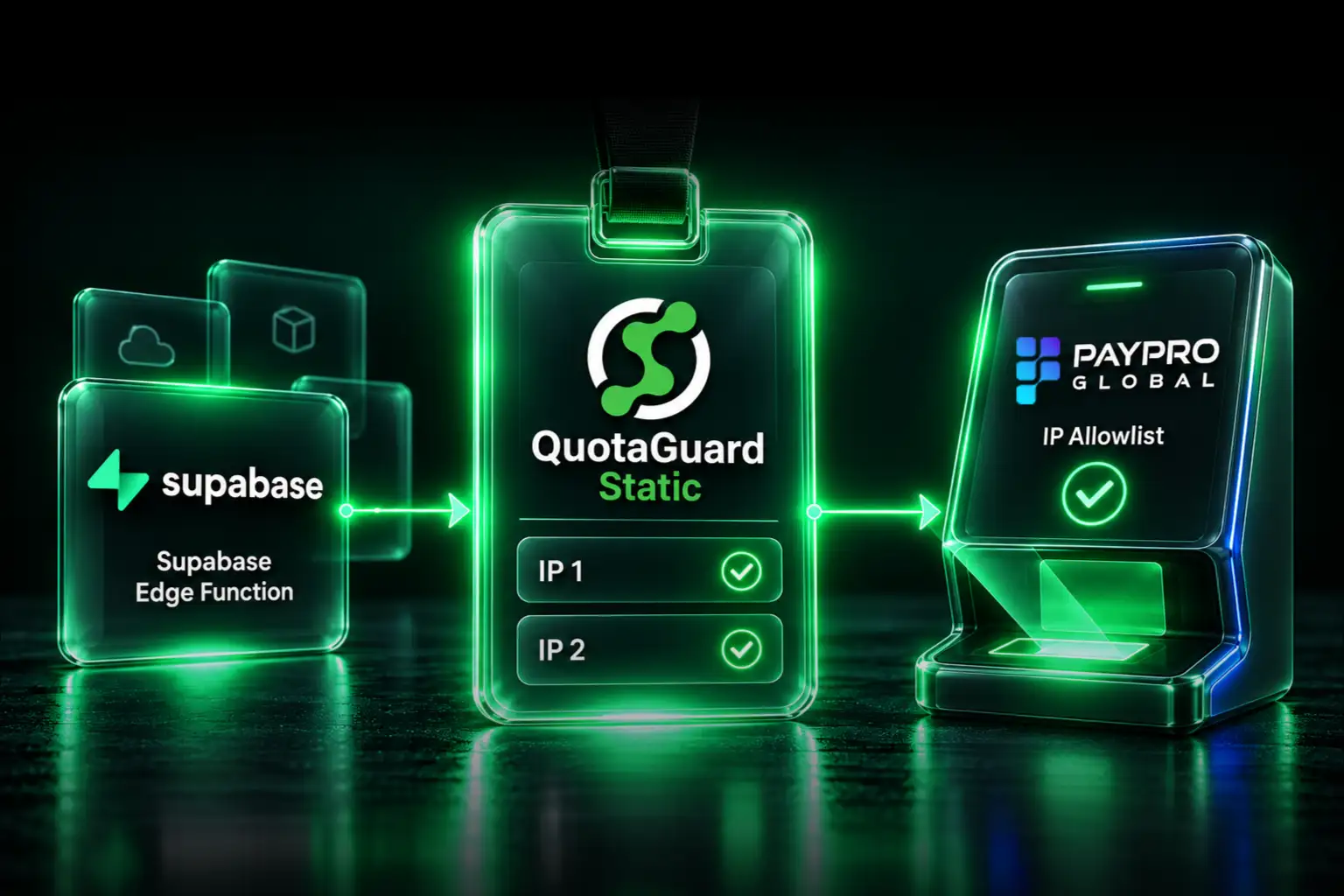
When you sign up for QuotaGuard, your two static IPs appear on the dashboard. Send those to the SFTP server admin:

"These are our two static outbound IPs. Please add them to the SFTP server's allow list. Both IPs are load-balanced with automatic failover, so both should be whitelisted."

They add the IPs. You configure QGTunnel. Your SFTP integration works reliably from any serverless platform.

Getting Started

Sign up for QuotaGuard Static. Download QGTunnel, create the tunnel in the dashboard, wrap your startup command, and deploy. Your SFTP connections exit from two static IPs.

QuotaGuard Static starts at $19/month. For compliance requirements (HIPAA, PCI-DSS), QuotaGuard Shield starts at $29/month.

QuotaGuard Static IP Blog

Practical notes on routing cloud and AI traffic through Static IPs.

Reliability Engineered for the Modern Cloud

For over a decade, QuotaGuard has provided reliable, high-performance static IP and proxy solutions for cloud environments like Heroku, Kubernetes, and AWS.

Get the fixed identity and security your application needs today.