


For an IP-allowlisted SFTP server, use the built-in SFTP connector in an Azure Logic App Standard workflow when you want the connection to follow your VNet and NAT Gateway. The shared SFTP-SSH managed connector takes a different path through Microsoft's regional connector infrastructure and does not inherit the Logic App's NAT address.
That connector choice determines which source IP the SFTP partner sees. It also determines whether you can provide a small, stable address or must ask the partner to allow Microsoft's current managed-connector ranges.
QuotaGuard is not a proxy field inside either SFTP connector. If you want QuotaGuard to provide the outbound identity, the Logic App must call a customer-controlled transfer service, such as an Azure Function, container, or worker, whose SFTP client can connect through QuotaGuard SOCKS5 or QGTunnel.
The short answer
Choose the Standard built-in SFTP connector with VNet integration and NAT Gateway when you want the native Azure route and your team is prepared to own the VNet, subnet routing, NAT configuration, public IP association, monitoring, and incident response.
Choose the shared SFTP-SSH managed connector when the SFTP provider accepts the full set of current Azure managed-connector outbound ranges for your region and your team can keep that firewall list current.
Choose a customer-controlled transfer worker through QuotaGuard when the SFTP provider will approve only a small stable set and you prefer managed proxy infrastructure. This is a separate architecture, not a hidden setting on the Microsoft connector.
Built-in and managed SFTP connectors do not use the same network path
Azure Logic Apps presents two connector models that can look similar in the workflow designer but behave differently on the network.
The built-in SFTP connector is available for Standard, single-tenant Logic Apps. Microsoft documents that built-in connectors run in the same process as the Logic Apps runtime. Their backend traffic can use the Standard Logic App's VNet integration. When outbound traffic is routed through the integrated subnet and that subnet is associated with a NAT Gateway, the SFTP server can see the NAT Gateway's public IP.
The shared SFTP-SSH managed connector runs in Microsoft's shared connector infrastructure. Microsoft documents that this backend traffic cannot use the Logic App's VNet integration. A NAT Gateway attached to the Logic App's integrated subnet therefore does not change the source identity of a managed-connector SFTP connection.
This explains a common failure: a team adds a NAT Gateway, gives its address to an SFTP partner, and still sees the connection rejected. If the workflow action uses the managed connector, the partner never sees that NAT address.
How to identify which connector your workflow uses
Open the workflow in the Azure portal and inspect the SFTP action or trigger. In a Standard Logic App, the built-in connector is identified as Built-in or In-app. The managed connector is identified as Shared or Azure, depending on the current designer view.
Do not infer the path from the action name alone. Both may use SFTP terminology, and both ultimately connect to port 22, but their outbound paths are different.
The decisive check is on the receiving server. Ask the SFTP administrator which source address appears in the connection log. A successful test from the actual workflow is stronger evidence than the Logic App resource's displayed address list.
Option 1: Built-in SFTP with VNet integration and NAT Gateway
This is the native Azure answer for a Standard Logic App whose SFTP partner requires a dedicated source address.
- Use an Azure Logic App Standard resource and select the built-in SFTP connector.
- Integrate the Logic App with the intended virtual network and delegated subnet.
- Configure outbound internet traffic to route through the VNet. In older configurations this may also appear as the
WEBSITE_VNET_ROUTE_ALLapplication setting. - Associate an Azure NAT Gateway and its public IP resource with the integration subnet.
- Give the NAT public IP to the SFTP administrator for allowlisting.
- Run the real workflow and confirm the observed source address in the SFTP server logs.
A February 2026 Microsoft Q&A report shows this exact path. After the customer corrected the allowlist configuration, the built-in SFTP connector worked with the NAT Gateway address allowlisted.
NAT Gateway is an Azure-managed networking service, but the surrounding architecture is still yours. Your team owns the Logic App plan, VNet integration, subnet and route configuration, public IP resources, firewall coordination, monitoring, and response when transfers fail. That can be the right operating model for an Azure team that already runs this network.
Option 2: Managed SFTP-SSH connector with Azure connector ranges
The managed connector is the simpler choice when the partner accepts Microsoft's shared regional ranges. Use Microsoft's current managed-connector outbound-IP documentation or Service Tag Discovery API for the region in which the Logic App is deployed.
Microsoft represents this infrastructure with the AzureConnectors service tag and regional forms such as AzureConnectors.<region>. Those prefixes belong to shared Microsoft connector infrastructure; they are not a dedicated identity assigned to one workflow or tenant.
Microsoft recommends checking for updated managed-connector addresses at least every 90 days. That creates work on both sides of the integration: your team has to monitor the published list, and the SFTP administrator has to approve changes before a new source address is used.
Some trading partners will not accept a broad shared range. Their policy may permit only one or two specific source addresses tied to your organization. If that is the requirement, switching to the built-in connector with NAT or using a controlled transfer worker is cleaner than trying to force the managed connector through a network it does not use.
Option 3: Logic App to a transfer worker through QuotaGuard
Neither Microsoft SFTP connector documents a field where you can paste an arbitrary authenticated HTTP or SOCKS proxy. Environment variables such as HTTP_PROXY and HTTPS_PROXY do not turn an SFTP connector into a proxied SSH client.
The insertable QuotaGuard path is:
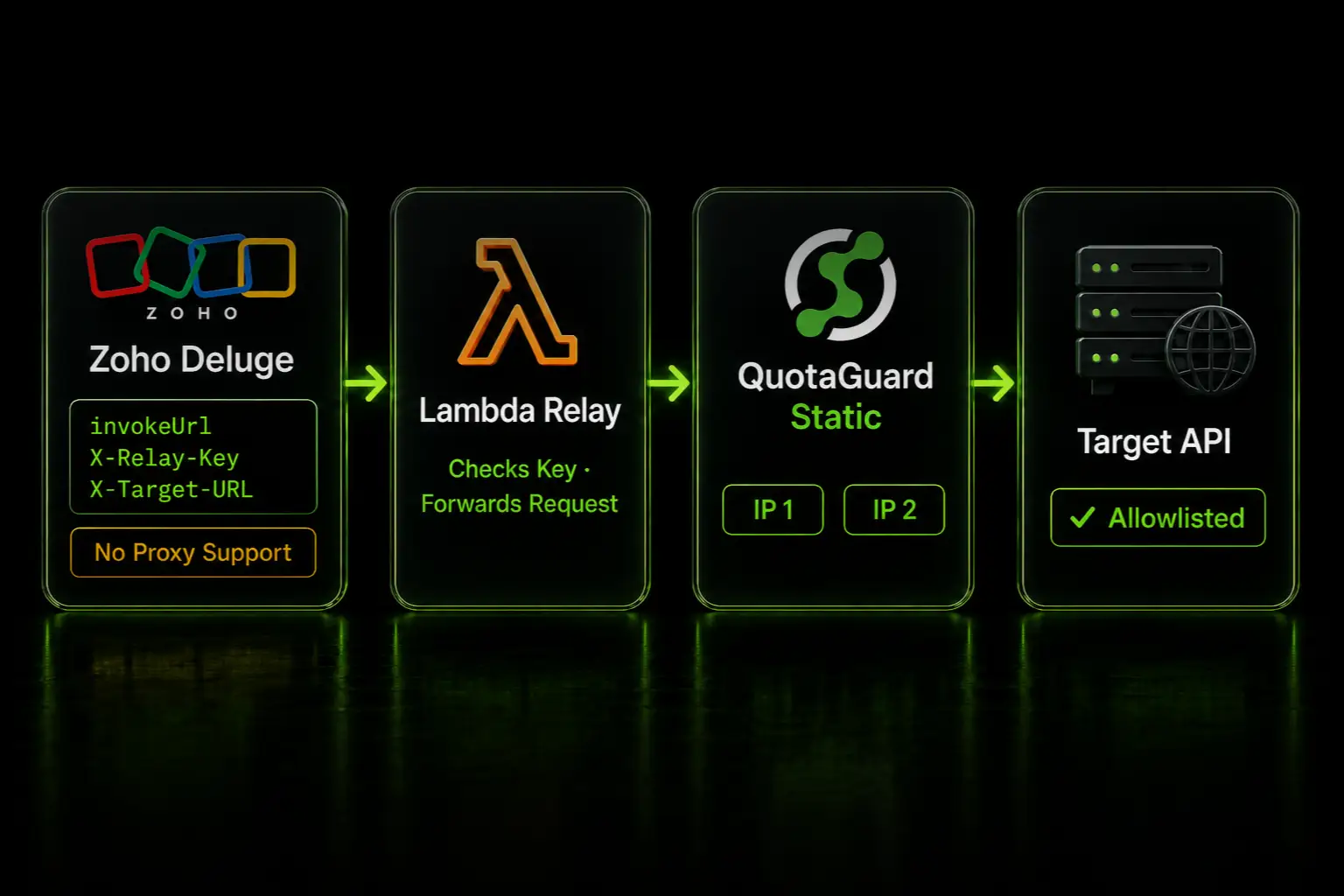
Logic App → authenticated HTTPS request → Azure Function, container, or worker → QuotaGuard SOCKS5/QGTunnel → SFTP server
The Logic App sends an authenticated transfer request to code you control. That worker uses an SFTP library with authenticated SOCKS5 support, or reaches a local QGTunnel listener. The SFTP provider allowlists both static IP addresses assigned to the QuotaGuard subscription.
This can be useful when the partner wants a small stable identity but your team does not want to operate NAT and proxy infrastructure. QuotaGuard operates the proxy layer, availability, monitoring, and incident response. Your team still owns the worker code, its deployment and authentication, the SFTP credentials, host-key verification, transfer retries, and application-level monitoring.
This is not a direct Logic Apps connector integration, and it has not been tested across every Azure Functions plan, runtime, or SFTP library. The worker must run in an environment where its chosen SFTP client can use QuotaGuard SOCKS5 or QGTunnel. If a deployment exposes a problem, QuotaGuard support can help map and troubleshoot the actual network path.
Which route should you choose?
Use built-in SFTP plus NAT when you want the most direct native Azure design, already operate Standard Logic Apps and VNets, and accept responsibility for that network.
Use the managed connector ranges when the SFTP partner accepts shared regional prefixes and both organizations have a reliable process for keeping the allowlist current.
Use a transfer worker plus QuotaGuard when the partner requires a small stable set, your application can call a worker over HTTPS, and managed egress infrastructure is more valuable than owning the NAT and proxy layer.
The comparison is not only monthly price. Decide who owns the network architecture, address lifecycle, monitoring, failover, capacity, security maintenance, after-hours incidents, and coordination with the SFTP partner.
Troubleshooting when SFTP still reports the wrong source IP
The partner sees an Azure address that is not your NAT address. Confirm that the workflow action is the built-in connector rather than the shared managed connector.
The built-in connector does not use the NAT address. Verify VNet integration, outbound internet routing or Route All, the subnet-to-NAT association, network security groups, user-defined routes, and any Azure Firewall in the path.
The managed connector is blocked. Compare the observed source address with the current managed-connector range for your Azure region. Do not use the Logic App resource's built-in outbound address list as a substitute for the managed-connector list.
The connection works without the expected allowlist entry. Confirm that the SFTP firewall is actually enforcing the rule you think it is. A public endpoint, a broader rule, or an old address range may be allowing the connection.
The firewall rule specifies source port 22. Port 22 is the destination port on the SFTP server. Client source ports are normally ephemeral, so source-port filtering can break otherwise valid connections.
The worker can reach QuotaGuard but SFTP fails. Ask the partner which source address and SSH error appear in its logs. Verify that both QuotaGuard addresses are allowlisted, the destination hostname and port are correct, and the worker is validating the expected SSH host key.
Security and credential handling
SFTP encrypts the SSH session between the client library and the SFTP server. QuotaGuard Static carries that encrypted stream through a blind tunnel and does not decrypt the SFTP payload. The Static client-to-proxy authentication and hop are not separately wrapped in TLS.
QuotaGuard Shield adds TLS protection to the client-to-proxy hop through its supported secure connection methods. Do not assume that SFTP or regulated data automatically requires Shield; use the product and architecture approved by your security and compliance review.
Keep QuotaGuard and SFTP credentials in the worker's secret store rather than in Logic App action bodies or source code. Authenticate the Logic App's request to the worker, restrict the worker to approved destinations and operations, and validate filenames and remote paths.
Plans and regions
QuotaGuard Static starts at $19 per month. QuotaGuard Shield starts at $29 per month. Both provide the pair of static outbound IP addresses used by the applicable QuotaGuard architecture.
QuotaGuard operates in 12 AWS regions. Choose the nearest region when you sign up to reduce latency, and contact QuotaGuard support if an existing subscription needs to move regions.
Official Azure references and real developer demand
Microsoft: Built-in versus shared connectors in Azure Logic Apps
Microsoft: SFTP built-in connector reference
Microsoft: Managed connector outbound IP addresses
Microsoft: Troubleshoot Logic Apps Standard connectivity
Microsoft: Secure traffic between Standard Logic Apps and virtual networks
Developer report: built-in Logic Apps SFTP works after correcting the NAT Gateway allowlist
Related QuotaGuard guides
Static IPs for serverless SFTP allowlisting
Use QGTunnel for databases, FTP, SFTP, and other TCP protocols
Static outbound IPs for Azure Functions, Data Factory, and Power Automate
Get started
First identify the connector path and ask the SFTP administrator which source address it sees. If the built-in connector and native NAT architecture fit your team, use them. If the managed connector ranges are acceptable, maintain those ranges. If the partner requires a small stable set and you want the egress layer operated for you, review QuotaGuard Static and route a customer-controlled transfer worker through SOCKS5 or QGTunnel.
.webp)