How to Rotate a Subscription Password
Each QuotaGuard subscription has one set of proxy credentials: a username and a password. The password is the part you rotate. There is one active password per subscription, and generating a new one replaces the old one.
Note: This article covers the proxy password for a subscription, not the login for your QuotaGuard account. To change your account login password, see Getting Started - Account Management.
What changes and what stays the same
Rotating the password changes only the password. Your username, proxy hostname, port, and static IP addresses stay the same, so nothing needs to change on the services that allowlist your IPs. The only value to update on your side is the password inside your proxy URL.
The old password stops being accepted as soon as you generate a new one. Connections that are already open keep working, but any new connection made with the old password is refused. Running two passwords at the same time is not supported.
Rotate the password
Step 1: Log into your QuotaGuard Account.
Step 2: In the upper right dropdown, select the subscription you want to rotate.
Step 3: Open Setup (the gear icon) and select Outbound Proxy.
Step 4: Under Outbound Proxy Details, click the rotation icon next to the password. Confirm the prompt and a new password is generated.
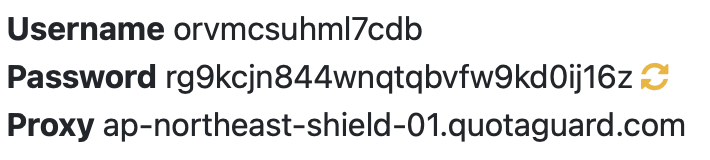
Step 5: Update the proxy URL in your application.
- On Heroku, the
QUOTAGUARDSTATIC_URLorQUOTAGUARDSHIELD_URLconfig var is updated for you. Restart or redeploy your app so it picks up the new value. - Everywhere else, replace the password in your
QUOTAGUARDSTATIC_URLorQUOTAGUARDSHIELD_URLenvironment variable, secrets manager, or config file, then restart or redeploy.
Keep the changeover short
Because the old password is refused immediately, the gap is the time between generating the new password and your application picking it up. A few habits keep that gap small:
- Store the proxy URL in one place, such as a single environment variable or a secrets manager entry, so there is one value to update.
- Rotate during a quiet period for the application.
- Have the new value ready to deploy before you click the rotation icon.
- Retries in your HTTP client cover the brief window where a request is refused.
If you believe a password has been exposed, rotate it right away. If your situation needs a longer changeover than a single switch allows, contact support before rotating and we can work through options with you.
If you have any questions, please contact us at QuotaGuard Support.