How to Sign Up for QuotaGuard on AWS - QuotaGuard
Table of contents
Getting Started with QuotaGuard on AWS
Signing up for QuotaGuard through the AWS Marketplace is a straightforward process that takes just a few minutes. You can choose between our two products: QuotaGuard Static (for basic static IP needs) or QuotaGuard Shield (for enhanced security features).
The setup process involves subscribing through AWS Marketplace and then completing your configuration in our dashboard to get your static IPs and connection details.
Important: One Subscription per Product per AWS Account
An AWS buyer account can have only one active contract for each QuotaGuard Marketplace listing, and each contract provisions one QuotaGuard subscription on one plan.
One AWS account can therefore hold one QuotaGuard Static subscription and one QuotaGuard Shield subscription at the same time because they are separate Marketplace listings. A second Static subscription or a second Shield subscription requires a different AWS account, such as a member account under your AWS Organization.
If you need several QuotaGuard subscriptions but do not want to operate multiple AWS accounts, direct QuotaGuard billing supports multiple subscriptions under one QuotaGuard account. Contact Support before purchasing if you need help choosing the right account structure.
How to Subscribe to QuotaGuard on AWS Marketplace
Step 1. Navigate to our AWS Marketplace product page:
- QuotaGuard Static - For basic static IP functionality
- QuotaGuard Shield - For enhanced security and features
If you are setting up more than one subscription for the same QuotaGuard product, sign in to the separate AWS member account that will own each contract before continuing.
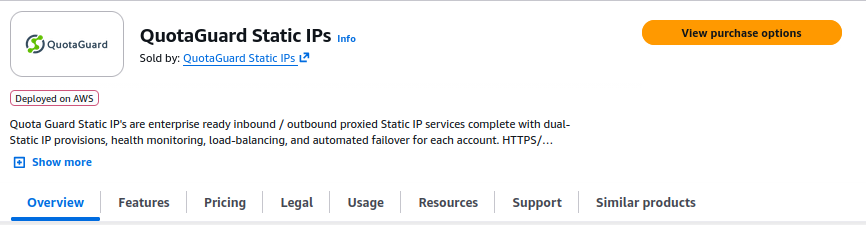
Step 2. Click View purchase options.
Step 3. Specify your desired terms including auto-renewal preferences and select your plan from the pricing details, then continue to the next page.
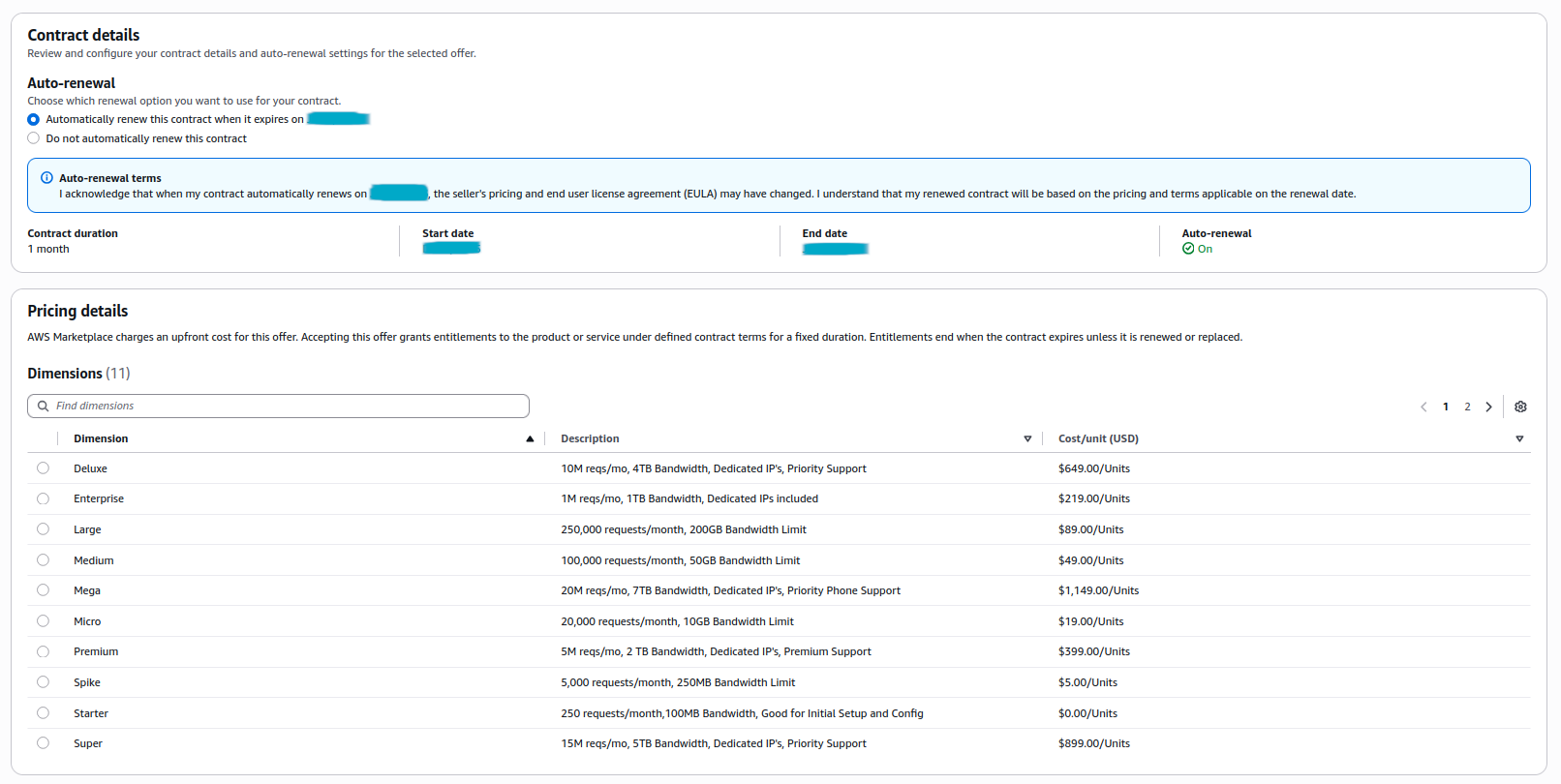
Step 4. Review your plan details and click Subscribe.

Step 5. The page will refresh and display either “Your subscription is in progress…” or “You successfully purchased QuotaGuard…”. In either case, click Set up your account to continue to our dashboard.
If you see “Subscription in progress”:

If you see “Successfully purchased”:

Complete Your QuotaGuard Setup
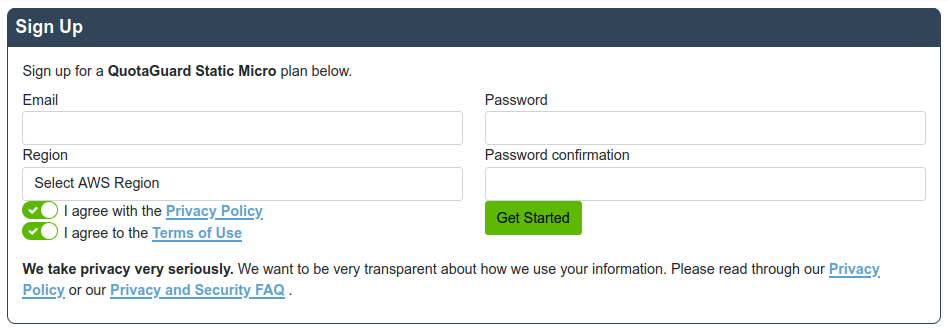
Step 6. You’ll be redirected to our QuotaGuard dashboard to finish the configuration. Here you’ll need to:
- Enter your preferred login email address
- Create a secure password
- Select your desired AWS region for optimal performance
After reviewing and agreeing to our Privacy Policy and Terms of Use, click Get Started to complete the setup process.
What Happens Next?
Once you complete the setup, you’ll have immediate access to:
- Your static IP addresses
- Connection credentials and configuration details
- Our dashboard for monitoring and managing your service
That’s it! Your QuotaGuard service is now ready to use. If you have any questions during the setup process or need help with integration, please don’t hesitate to contact our Support team.