How to Label Your Subscriptions
Table of contents
Every QuotaGuard subscription is identified by a generated username. If your account has more than one subscription, those usernames can be hard to tell apart. You can add a label to each subscription to record which app, environment, or customer it belongs to.
A label is for identification only. Setting, changing, or removing a label does not affect your credentials, your proxy or IP addresses, or your billing.
Step 1: Log into your QuotaGuard Account.
Step 2: In the upper right dropdown, select Manage Subscriptions.
Step 3: In the Label field on a subscription, type a label and click Save. Changing or removing a label works the same way: edit or clear the field and click Save again.
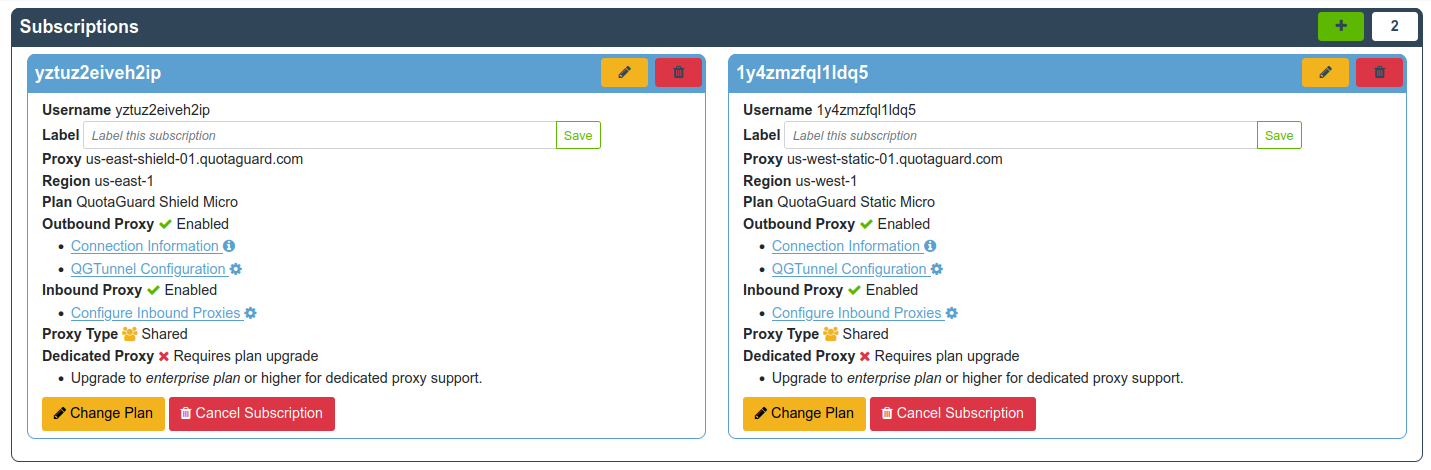
The label appears in parentheses next to the username on the subscriptions page and in the subscription selector in the upper right:
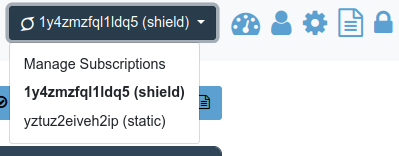
As you move around the dashboard, the selector shows the subscription you are currently working with:

If you have any questions, please contact us at QuotaGuard Support.