How to Upgrade, Downgrade, Cancel Subscription
Table of contents
We try and make it very simple to upgrade, downgrade, or cancel your QuotaGuard subscription plan. Start by opening Manage Subscriptions, then follow the section for the task you want to complete.
Note: Changing your plan will not affect the availability of your service, change your IP addresses, or cause downtime, except for the proxy downgrade cases explained under Downgrade a Subscription. This applies to plan changes, not cancellation.
Open Manage Subscriptions
Step 1. Log into QuotaGuard at https://www.quotaguard.com/users/sign_in.
Step 2. In the upper right, click the subscriptions dropdown box to see all of your current QuotaGuard subscriptions.
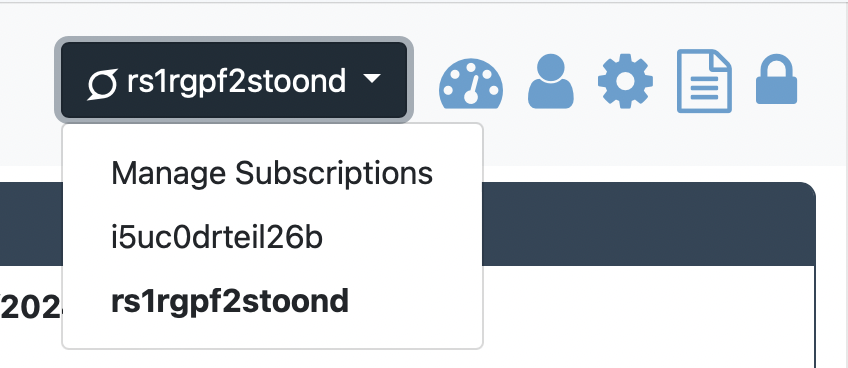
Step 3. Click Manage Subscriptions to see all your subscriptions on one screen. Find the subscription you want to upgrade, downgrade, or cancel. The Change Plan option is available here for plan changes.
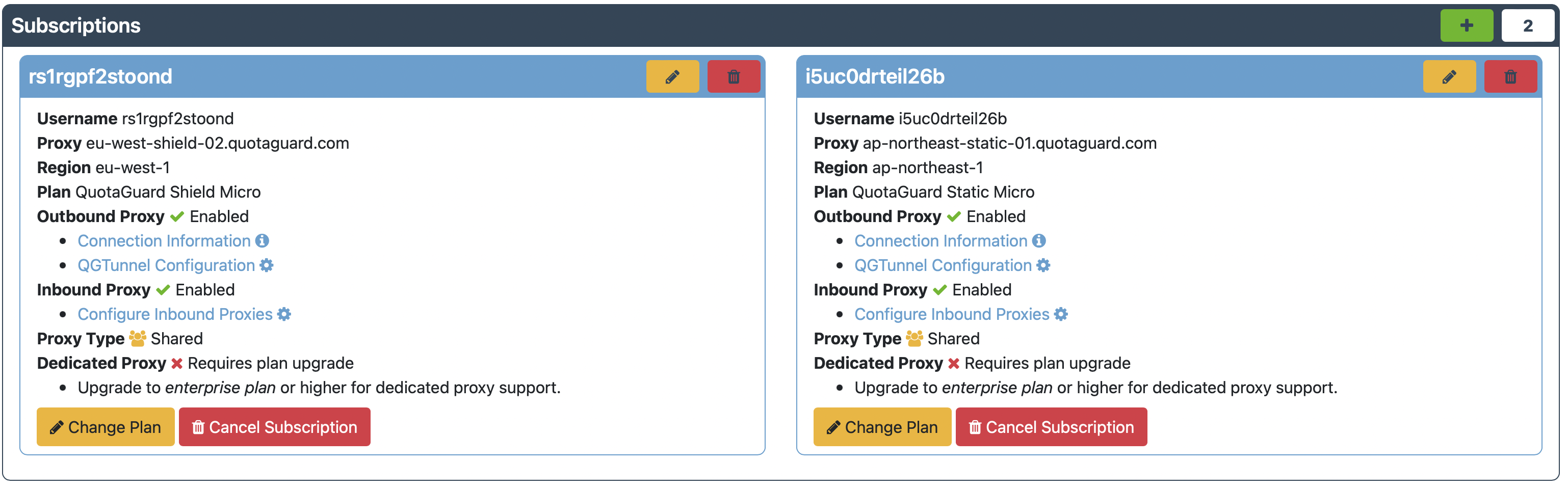
Choose the instructions below for upgrading, downgrading, or canceling.
Upgrade a Subscription
Step 1. On the Manage Subscriptions screen, click Change Plan on the subscription you want to upgrade. This opens the subscription plan options.
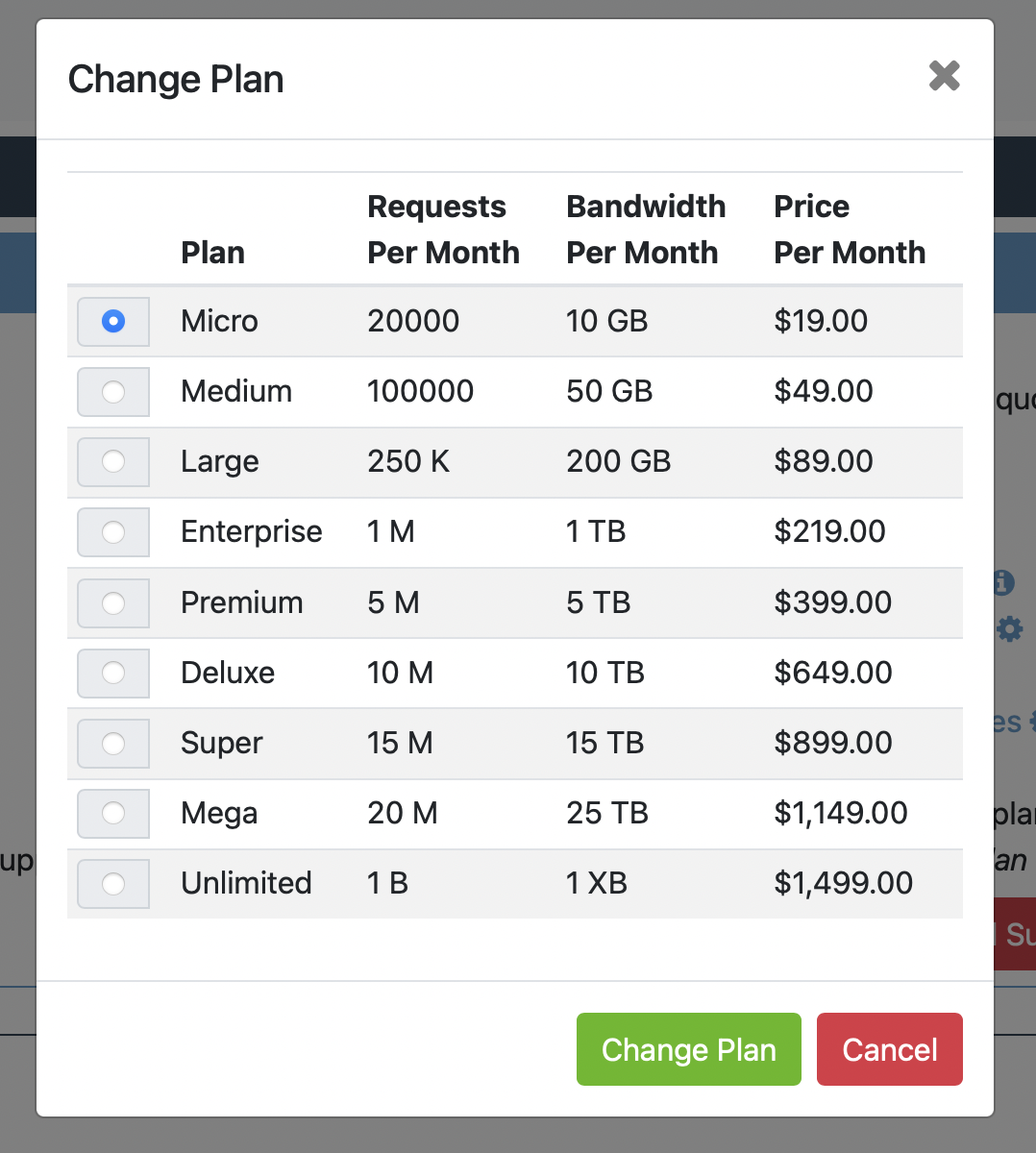
Step 2. Select the higher plan that you want. If you need help deciding, we can help at Support.
Step 3. Click Change Plan to select that plan.
Upgrade billing: If you are increasing your plan (upgrading), Stripe will automatically charge the default payment method on file for a pro-rated amount based on the time remaining in your pre-paid monthly cycle.
Downgrade a Subscription
Before downgrading: A plan change would affect your service if you are on a Dedicated Proxy and downgrade below the Enterprise Plan. On Heroku, AWS, and Azure marketplace subscriptions, downgrading below the Micro Plan also affects Inbound proxies. If either of those cases is likely for you, please email us at Support first!
Step 1. On the Manage Subscriptions screen, find the subscription you want to downgrade and click Change Plan. This opens the subscription plan options, as shown in the screenshot in the upgrade section above.
Step 2. Select the lower plan that you want, taking the proxy requirements above into account. If you need help deciding, we can help at Support.
Step 3. Click Change Plan to select that plan.
Downgrade billing: If you are decreasing your plan (downgrading), Stripe will automatically credit your on-going subscription with the unused, pre-paid amount paid in the prior month and apply it to your future payments.
Cancel a Subscription
Step 1. On the Manage Subscriptions screen, find the subscription you want to cancel. If you have multiple subscriptions, make sure you have selected the correct one.
Step 2. Click Cancel Subscription for that subscription.
Important: If this is your only subscription, canceling it will also close your account.
That’s it! Happy Tunnelling!