How to Update Your Salesforce IP Allowlist Without Breaking Customer Authentication

QuotaGuard Engineering
May 12, 2026
5 min read
Pattern

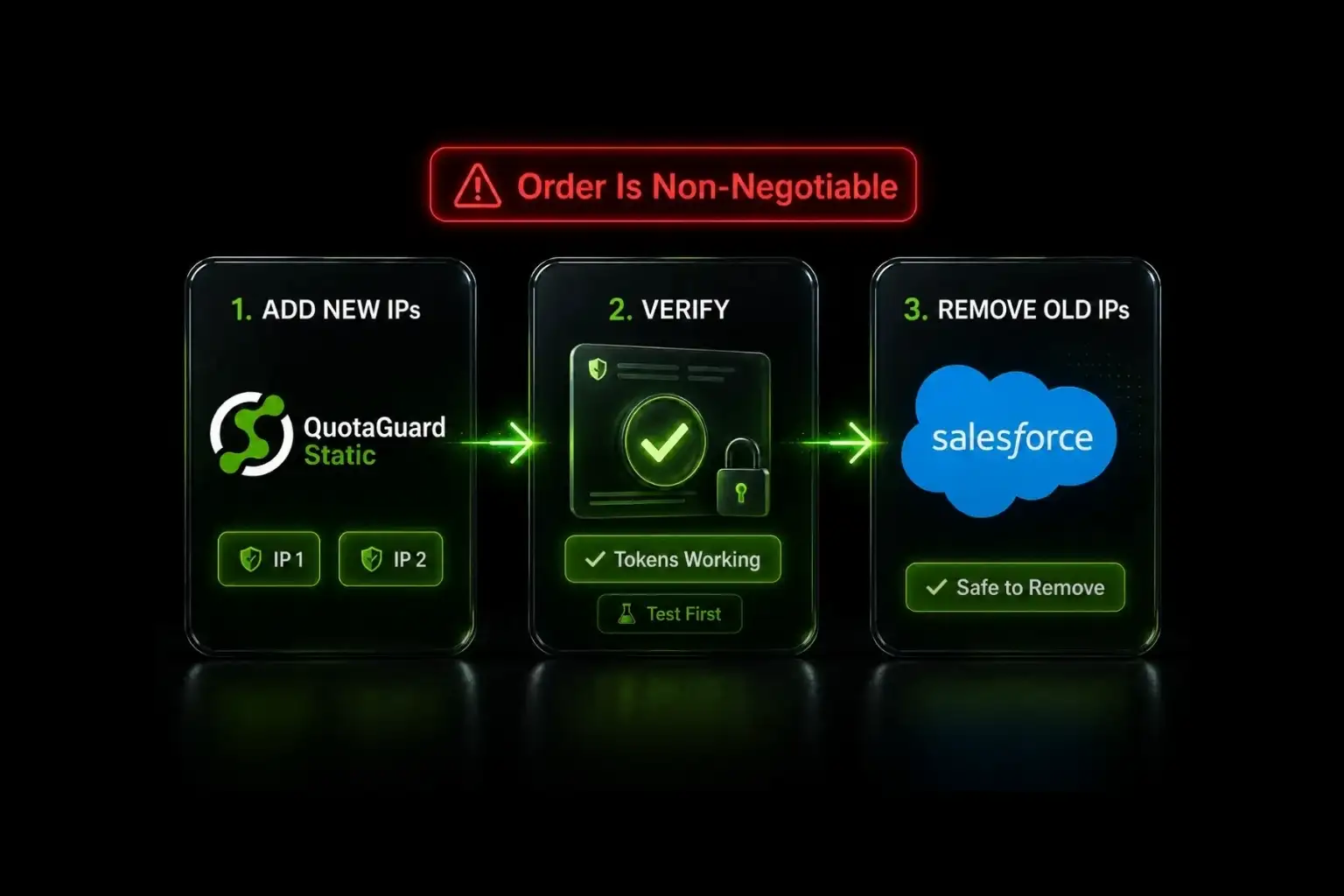
Add the new IPs to your Salesforce External Client App allowlist first, verify refresh tokens redeem cleanly through them, then remove the old IPs. Reversing this order breaks customer authentication immediately.

If you're an AppExchange ISV running a refresh-token-based integration, you'll eventually need to change the IP addresses on your External Client App's allowlist. The trigger could be a region migration, a proxy provider change, or an infrastructure rebuild. The cutover itself is a five-minute task, but doing it in the wrong order takes down every customer's authentication for the duration of the mistake.

Salesforce's enforcement model is what makes the order matter. The Refresh Token IP Allowlist is a hard block. Requests from outside the allowed ranges are rejected entirely, not flagged for verification. That's documented explicitly in Set IP Allowlist Ranges for Refresh Tokens. There is no soft-fail, no warning state, no grace period.

Hard-Block Enforcement Means Cutover Order Is Non-Negotiable

When you add a new IP range to your External Client App, the change takes effect immediately. When you remove an old one, that change also takes effect immediately. Neither operation is staged or delayed by Salesforce. This is the operational reality you have to design around.

If you remove your old IPs before adding the new ones, every active session that needs to refresh a token from the old IPs starts failing the moment the removal saves. Your customers see authentication errors. Your support inbox fills up. Your AppExchange status indicator flips red. The fix is to re-add the old IPs, but by the time you've diagnosed the problem and reverted, the damage to your reliability metrics is done.

The correct order is the inverse: new IPs go on the allowlist first, traffic is verified through them, then the old IPs come off. At no point during the cutover is your application unable to authenticate.

QuotaGuard's Two-IP Pair Makes Staged Cutover Possible

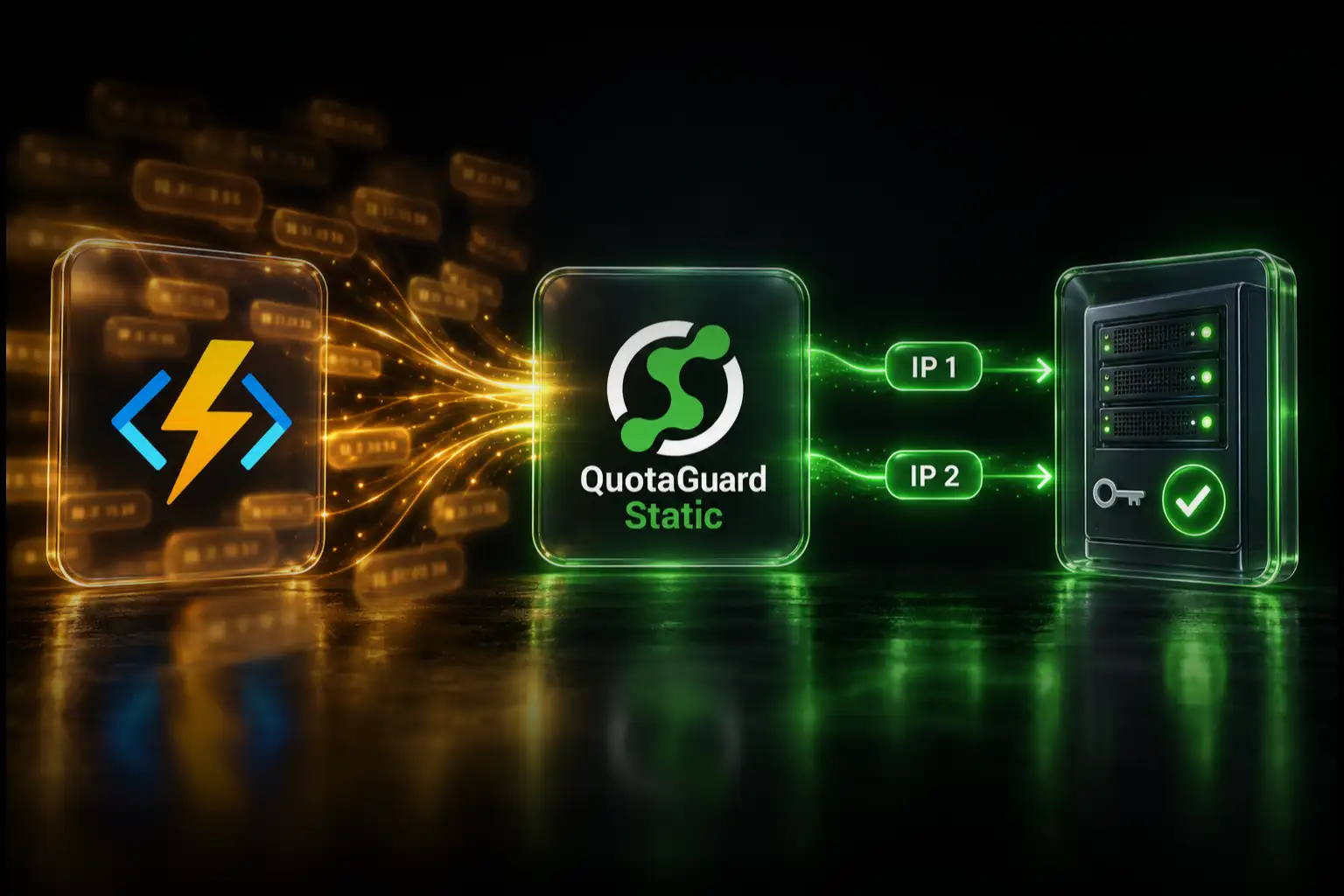
QuotaGuard Static gives you a load-balanced pair of static IPs. During normal operation, both IPs are on your Salesforce allowlist and traffic routes through whichever responds first. During a cutover, the pair lets you stage the change without ever leaving your application without an authenticated path to Salesforce.

Salesforce's allowlist accepts up to 128 IP ranges with a maximum of 256 total IPs. That capacity is generous for cutover scenarios. You can have your old QuotaGuard IPs and your new QuotaGuard IPs on the allowlist simultaneously for as long as the cutover takes, with room to spare for any future expansion.

The Five-Step Cutover Procedure

This is the procedure to follow whenever you change the static IPs your Salesforce integration egresses from. Run through it in order.

Step 1: Confirm Both Old and New IPs Are Live

Before you touch the Salesforce allowlist, confirm your new QuotaGuard IPs are reachable and routing correctly. Make a test request through the new proxy URL to ip.quotaguard.com from your application environment.

curl -x http://username:password@us-east-static-01.quotaguard.com:9293 -L ip.quotaguard.com

The response should show one of your new QuotaGuard IPs. Run it a few times. The response should alternate between your two new IPs as the load balancer routes through both. If you only see one IP across multiple requests, contact QuotaGuard support before proceeding. The pair has to be healthy before the cutover begins.

Step 2: Add the New IPs to Your Salesforce Allowlist

In Salesforce Setup, open External Client Apps Manager, find your ECA, and edit settings. Under the Refresh Token IP Allowlist section, click Add. Enter your two new QuotaGuard IPs as separate ranges (start and end address can be the same for a single IP). Save.

At this point your allowlist contains both your old QuotaGuard IPs and your new QuotaGuard IPs. Salesforce accepts refresh token redemptions from any of the four. This is the safe state during cutover.

Step 3: Cut Application Traffic Over to the New Proxy

Update the QUOTAGUARDSTATIC_URL environment variable on your application infrastructure to point at the new connection URL. Redeploy or restart so the change takes effect. Your application now egresses from the new IPs.

Watch your authentication metrics. Refresh token redemptions should continue at the same rate as before, just now arriving at Salesforce from the new IPs. If you see redemption errors, your new IPs may not be on the allowlist correctly. Check the External Client Apps Manager screen and confirm both new IPs are present.

Step 4: Verify a Real Redemption Through the New IPs

Don't trust metrics alone. Run an actual refresh token redemption through your application code with the new proxy active and confirm Salesforce returns valid tokens.

import os
import requests
 
proxy_url = os.environ.get("QUOTAGUARDSTATIC_URL")  # The new URL
 
response = requests.post(
    "https://login.salesforce.com/services/oauth2/token",
    data={
        "grant_type": "refresh_token",
        "client_id": os.environ.get("SF_CLIENT_ID"),
        "client_secret": os.environ.get("SF_CLIENT_SECRET"),
        "refresh_token": stored_refresh_token,
    },
    proxies={"http": proxy_url, "https": proxy_url},
)
 
# Confirm 200 OK and a valid access_token in the response.
# If you see a 400 with error "invalid_grant" or similar, the IPs aren't allowlisted yet.
print(response.status_code, response.json())

Wait at least one full minute between this verification call and the next step. Salesforce sometimes takes a few seconds to fully propagate allowlist changes through its infrastructure, even though the UI saves immediately.

Step 5: Remove the Old IPs From Your Salesforce Allowlist

Once you've confirmed redemptions are succeeding through the new IPs, return to External Client Apps Manager and remove the old IP ranges. Save.

Watch your authentication metrics for another 15 minutes. If everything stays green, the cutover is complete. Your application is now egressing from the new IPs and Salesforce only accepts redemptions from those IPs.

Rollback Procedure if Something Goes Wrong

The cutover above is designed so that a failure at any step is recoverable without customer impact. The rollback procedure depends on which step failed.

If Step 1 fails (new IPs not live), don't proceed to Step 2. Contact QuotaGuard support and resolve the routing issue first. Your existing setup is still working in the meantime.

If Step 3 fails (application can't authenticate after pointing at the new proxy), revert the QUOTAGUARDSTATIC_URL environment variable to the old value and redeploy. Your old IPs are still on the allowlist. Authentication resumes immediately. Then diagnose what went wrong with the new proxy URL before retrying.

If Step 4 verification fails (Salesforce rejects redemptions through the new IPs), confirm the new IPs are actually present in External Client Apps Manager. Sometimes a save action doesn't take. Re-add the IPs explicitly and retry verification. Don't proceed to Step 5 until verification succeeds.

If Step 5 fails (you removed the old IPs and now nothing works), re-add the old IPs immediately. You'll be back to a working state within a minute. Then investigate why the new IPs alone aren't sufficient.

QuotaGuard Tip on Allowlisting Both IPs

QuotaGuard tip: Across our customer base running OAuth integrations on cloud platforms, the most common cutover mistake is forgetting to add both new IPs to the Salesforce allowlist. QuotaGuard's load-balanced pair routes traffic through either IP based on health checks, so adding only one means a portion of your refresh token redemptions will fail in ways that look intermittent. If the cutover seems "mostly working" but with sporadic failures, the cause is almost always a single IP on the allowlist where two should be.

When to Coordinate the Cutover with Salesforce Support

Most cutovers don't require Salesforce support involvement. The External Client Apps Manager UI handles the allowlist changes self-serve.

If you're on a legacy 1GP-packaged Connected App rather than an External Client App, the IP registration path is different. Salesforce's documented UI is for ECAs only, and legacy CA ISVs may need to register IP ranges via support case. In that scenario, the cutover sequence is the same conceptually (add new before removing old), but each step is slower because you're waiting on support to action your case. Plan a longer cutover window and confirm SLA expectations with your Salesforce account team before starting.

For ISVs running both legacy CAs and ECAs in the same packaged app, the safest order is to handle the ECA cutover first (self-serve, fast) and the legacy CA cutover second (support-mediated, slow). Don't try to coordinate both simultaneously.

Get Started With QuotaGuard Static for Salesforce

QuotaGuard Static plans start at $19/month for the Starter tier. The two-IP load-balanced pair is included on every plan, so the cutover-friendly architecture works at any tier.

For the broader context on why AppExchange ISVs need static IPs in the first place, see Static IP for Salesforce Connected Apps and External Client Apps. For full product comparison, FAQs, and setup details, see the Salesforce integration page. Plans and pricing are at quotaguard.com/products/pricing.

QuotaGuard Static IP Blog

Practical notes on routing cloud and AI traffic through Static IPs.

Reliability Engineered for the Modern Cloud

For over a decade, QuotaGuard has provided reliable, high-performance static IP and proxy solutions for cloud environments like Heroku, Kubernetes, and AWS.

Get the fixed identity and security your application needs today.